

How To
How to Add Sound Effects to a Video

If you’re an editor, you know how important sound effects are, but knowing how to add sound effects to a video the right way can be a battle.
In this tutorial, we’ll go through some of the things our founder, Finzar, does when editing animations, transitions, and text. There are a couple of useful shortcuts in here too, so hopefully this saves you some time on your next edit.
You can watch the whole thing above, or follow along below. Let’s get started.
Where to get sound effects

First up, you need some sound effects. The most commonly used in YouTube videos are whooshes, which give sound to everything from text to transitions and animations.
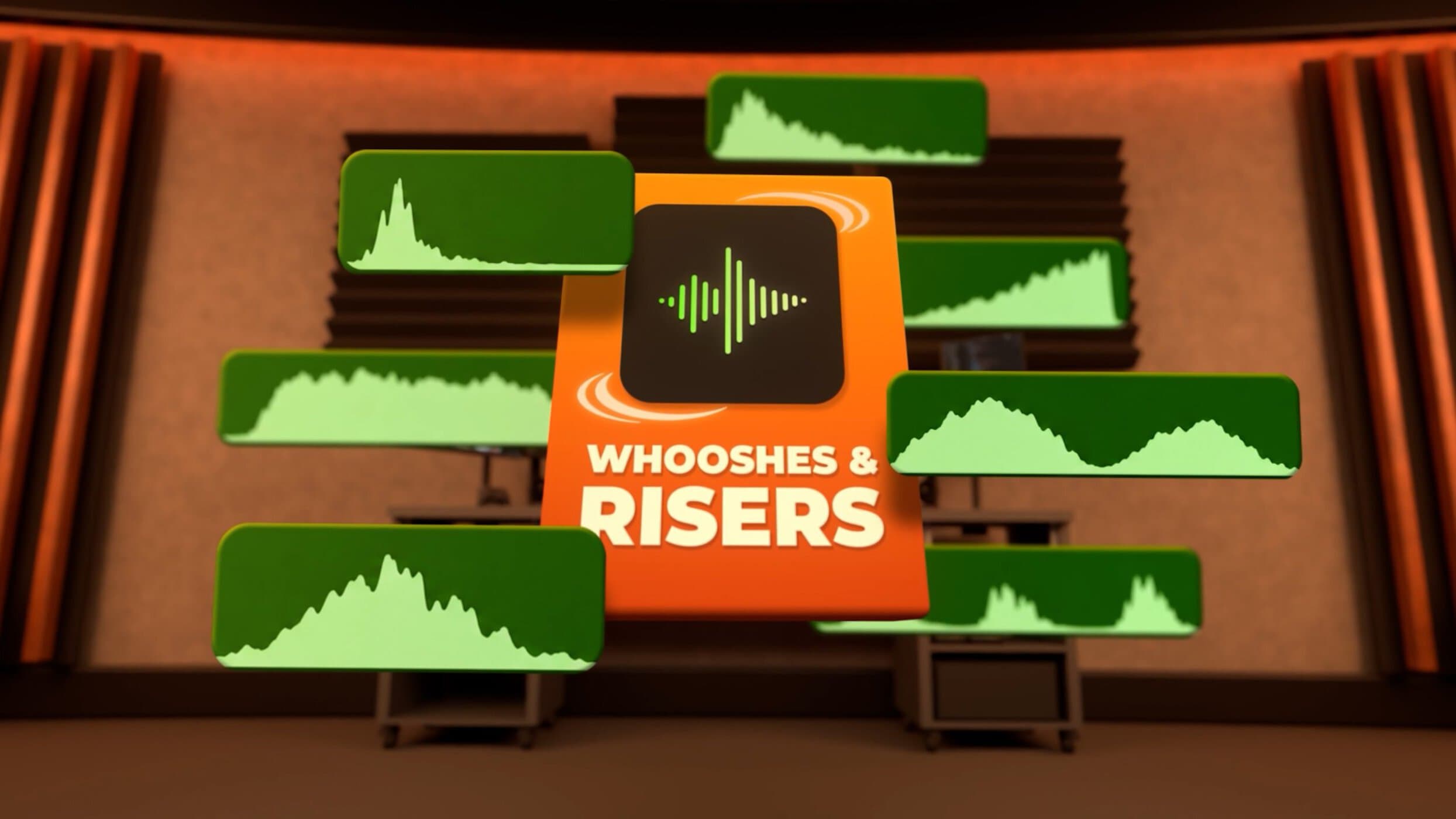
You can get these from places like Epidemic Sound, but these require a subscription and the sound quality can really vary. That’s why we, here at Storezar, created our own pack, the Whooshes & Risers SFX pack. It contains 155 SFX for a one-time price!
Wherever you get your sound effects, though, this tutorial will help you.
How to add sound effects – and where to put them
Now you have some sound effects, you’re going to want to import them to your project. For Premiere Pro and DaVinci Resolve, that means dragging your files into your project window.
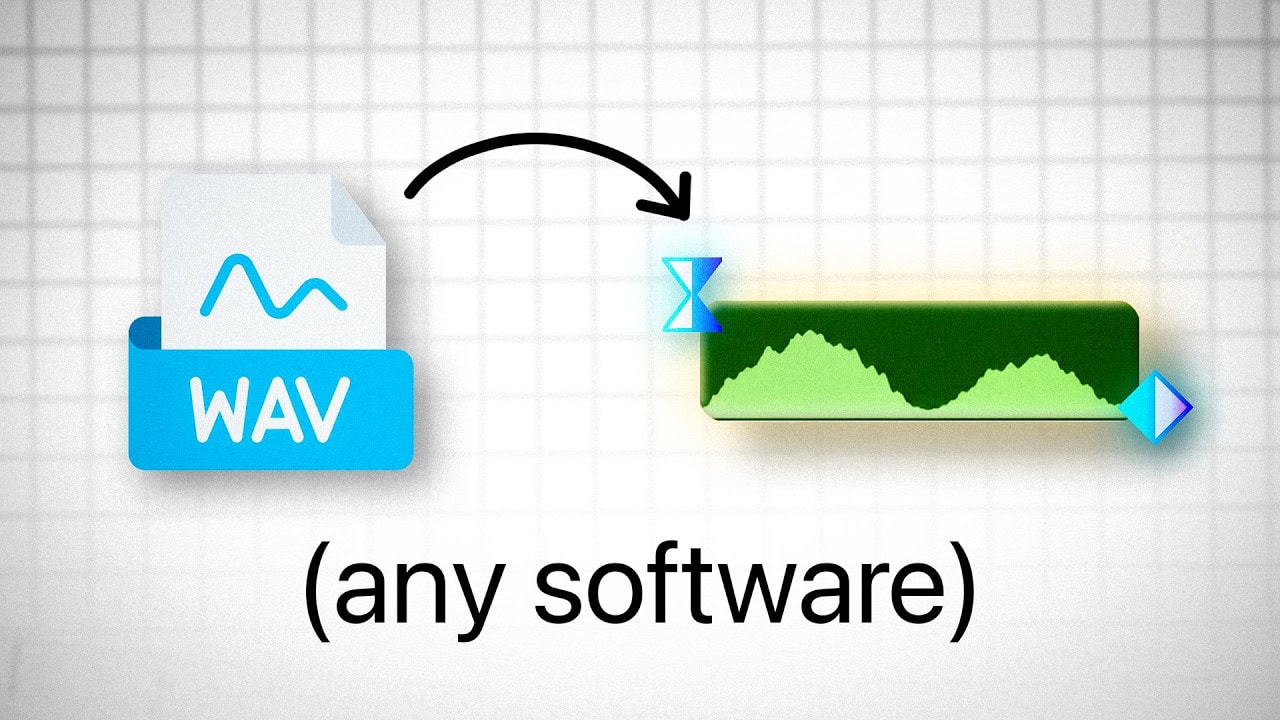
Then, you want to drag the SFX you want to add to your project onto your timeline. You should now see an audio waveform on your timeline. That’s the SFX. Simple!
Whatever sound effect you have, you want to line it up with the thing that makes that sound. For an animation, for example, you will want it to make a whoosh sound, so line up the movement with the spike in the audio waveform. It should feel like the animating object makes that whoosh sound as it moves!
A Whoosh SFX is also really useful on something like a transition, with the spike in the audio waveform coming when the transition’s movement is at its highest. A similar rule holds for animated text – when your text pops in, give it a sound.
Turn the volume down!
Sound effects can very quickly become TOO MUCH for a video, so it’s highly recommended you turn them down. In Premiere Pro, you can press G on the keyboard and turn the Gain down, while in DaVinci Resolve, you drag the volume line down.
For our videos on Storezar and Finzar, we normally turn these down by around 16 decibels; that’s a pretty safe spot, making your SFX quieter while still being in the mix. You don’t want a massive whoosh drowning you out halfway through a sentence.
Now, go give adding sound effects to your videos a go! Be sure to check out our Whooshes & Risers SFX Pack too – it includes fast whooshes, deep whooshes, high chops, and a selection of versatile risers.
Share this: